How to Use
Everything the AGC Comp Calculator can do — building a comp by hand, pulling straight from your scouted players, letting it auto-fill and counter-pick for you, saving and sharing builds, and tuning the data underneath it all.
Building a Team by Hand
Each team panel has 6 slots. Every slot has two dropdowns — a hero, and a skill level for whoever's playing that hero — plus a live DPM / HPM / DTM readout for that pick.
The skill dropdown
DPM/HPM/DTM are real per-hero averages pulled from rivalsheroes.com. The skill dropdown next to each slot scales only DPM and HPM up or down to account for who's actually behind the keyboard — Damage Taken is left alone, since a less experienced player doesn't reliably take more damage. Five levels: Learning it (70%), Improving (85%), Comfortable (100%, default), Practiced (115%), Locked in (130%).
Slots are always grouped by role
No matter how heroes get placed — by hand, loaded from scouts, or auto-filled — the display always sorts to Vanguard first, then Duelist, then Strategist, top to bottom. That's just for reading the comp at a glance; it doesn't change any of the numbers.
Auto-Fill Tools
Above each team's slots is a row of five tools. All of them respect the standard comp shape — 2 Vanguard / 2 Duelist / 2 Strategist — whenever heroes are picked automatically.

🎯 Load Team — pick from your scouted players
Opens a modal with one row per slot. Each row has two dropdowns: pick one of your scouted players, then pick one of their heroes from the second dropdown (it only shows heroes that player is tracked on). This is the manual, "I know exactly who I want where" version of pulling from scouts.
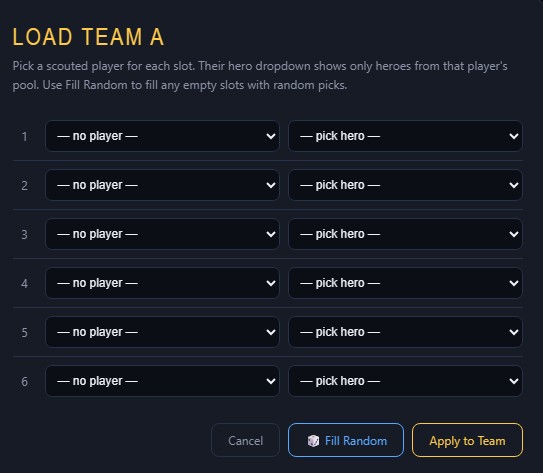
A Show: filter (All Players / Team A only / Team B only / Unassigned only) sits above these rows too — see Scouting Notes for how team assignment works.
Fill Random inside this modal fills any rows you left blank — it draws from your remaining unused scouted players first (so you still know who's playing what), respecting whichever Show: filter is currently selected. It only falls back to a random roster hero once that filtered pool runs out. It also counts whatever roles you already picked by hand, so it tops up whichever roles are still short instead of overloading one.
Apply to Team writes the modal's picks onto the real slots. Any slot that came from a scouted player gets a small green tag underneath it — 🎯 PlayerName · score 12/15 — so you can see at a glance who's playing what and why they were picked, and a matching status line appears under the team name too.
Randomize
Fills all 6 slots with a random hero from each role — 2 Vanguard, 2 Duelist, 2 Strategist — no scouting data involved. Good for quickly seeing stats on an arbitrary "standard-shaped" comp.
Counter Team A / Counter Team B
Reads the opposing team's current picks and fills this team with real hero-vs-hero counters where known, falling back to highest-stat picks for any role it can't find a known counter for. If the opponent is running 3 Strategists, it automatically shifts to a 2/1/3 shape to match their sustain instead of forcing 2/2/2.
From Scouts
Pulls only from players tagged to that side — Team A's From Scouts button only considers players you've set to Team A on the Scouting Notes page, Team B's only considers Team B. Unassigned players are skipped entirely by this button (they're still fair game in the Load Team modal, though). Among that side's tagged players, it ranks everyone by score (mastery × 2 + threat) and fills the team top-down, taking each player's single best-rated hero — but only if that hero's role still has room under the 2/2/2 shape. A high-scoring player can be skipped if their best hero's role already filled up from someone ranked higher. Any role slots still open after that get a random hero of that same role.
Clear team
Empties all 6 slots and clears that team's status line (the From Scouts / Load Team / Counter note under the team name).
Reading the Comparison
Once both teams have picks, the tool totals DPM, HPM, and DTM across all 6 slots per team and shows a head-to-head compare bar, with the leading number on each stat highlighted.
- Role breakdown — a small line under each team's header shows the Vanguard / Duelist / Strategist split at a glance.
- Team-Up badges — a ⚡ green badge means that hero's own kit is actively buffed by a Team-Up partner already on the team. A ⚡ yellow badge means this hero is the one giving a teammate a Team-Up buff without benefiting themselves. Hover either to see the pairing.
- Ultimate combo badges — an 💥 orange badge means this hero's ultimate combos with a teammate's already on the team — a crowd-control ult (Magneto, Groot, Doctor Strange, Storm, Jeff the Land Shark) paired with a damage ult that's much harder to dodge once enemies are locked down (Scarlet Witch, Iron Man, Star-Lord, The Punisher, Hela). Hover it to see the pairing; the general rule is CC ult first, damage ult right behind it.
- Counter warning badges — a ⚠ red badge means a hero on the opposing team is a known counter to that hero. Tap the small ? next to it for an ultimate-timing tip where one's known.
Saving & Sharing Builds
The Saved Compositions panel at the bottom of the page lets you name and store comps, then pull them back up later — or hand them to a teammate entirely.
- Build a comp on Team A and/or Team B, type a name into the box (e.g. "Dive Comp" or "Poke Strat"), then click Save Team A, Save Team B, or Save Both Teams.
- Saved comps show up as cards below, each with a ▶ Load as A and/or ▶ Load as B button to bring them back onto the board any time, plus a ✕ to delete.
- Click 📤 Export All to download every saved comp as a single JSON file — this is how you share a whole library of builds with someone else, e.g. dropping the file in Discord.
- On the receiving end, click 📂 Import and pick that same JSON file — their comps get added into your saved list.
Customizing the Data
Three toggles near the bottom of the page open editable libraries the rest of the tool reads from.
Edit hero stats library
Every hero's DPM/HPM/DTM, editable one row at a time. Export stats JSON / Import stats JSON let you save or load your own version of the numbers; Restore real stats resets everything back to the rivalsheroes.com defaults.
Edit hero counters
One row per hero, listing who counters them (comma-separated). This is exactly what the Counter Team button reads from, so editing a row here changes what it picks next time. Default data is sourced from Dexerto's counters guide and isn't complete for every hero — fill in gaps wherever you know better. Same Export / Import / Restore controls as the stats library.
Set Images
Points the tool at a local folder of hero portrait images (the same one used elsewhere for AGC branding), so slots show real hero art instead of colored-initial badges.
Scouting Notes
The 🔍 Scouting Notes page is where you build up the player cards that Load Team and From Scouts pull from. It's a separate page from the calculator, with its own toolbar, player list, and per-player note card.
Toolbar
Search players by name, filter the list by team assignment (below), add a new player, or export/import your whole notes file as JSON — handy for backing up or moving your scouting data between devices.

Player list
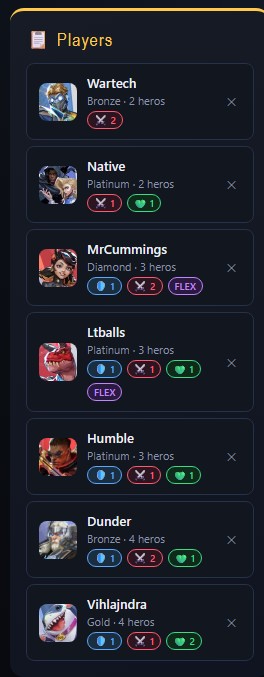
Every scouted player shows their rank, hero count, and a quick role breakdown — 🛡️ Vanguard, ⚔️ Duelist, 💚 Strategist counts across their hero pool, plus a FLEX badge if they're tagged as comfortable in all three roles. Once a player has a Team Assignment set (below), a colored Team A / Team B badge shows here too.
Player basics
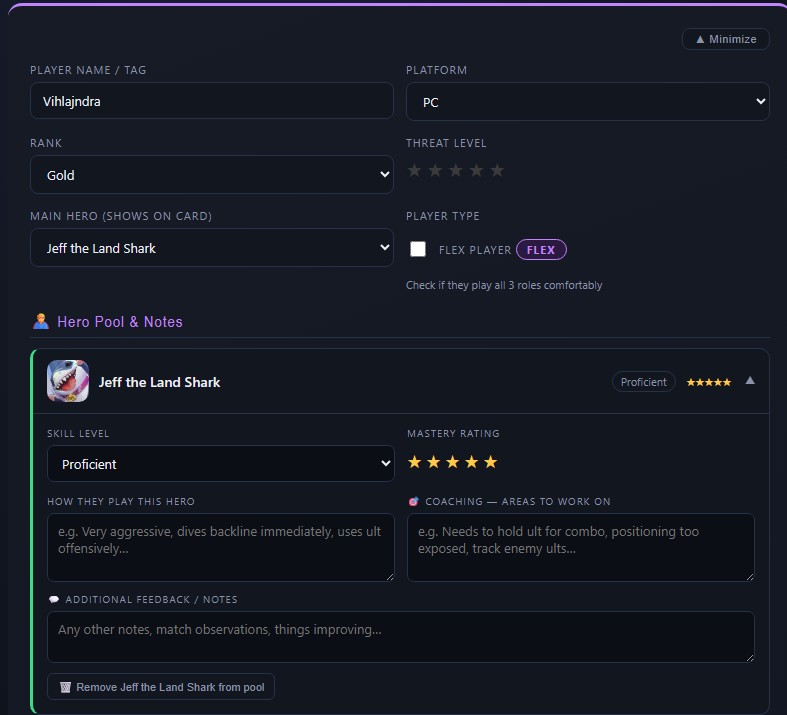
Click a player to open their card. Up top: name/tag, platform, rank, a 1–5 star Threat Level, their Main Hero (shown on their list card), and whether they're a Flex Player.
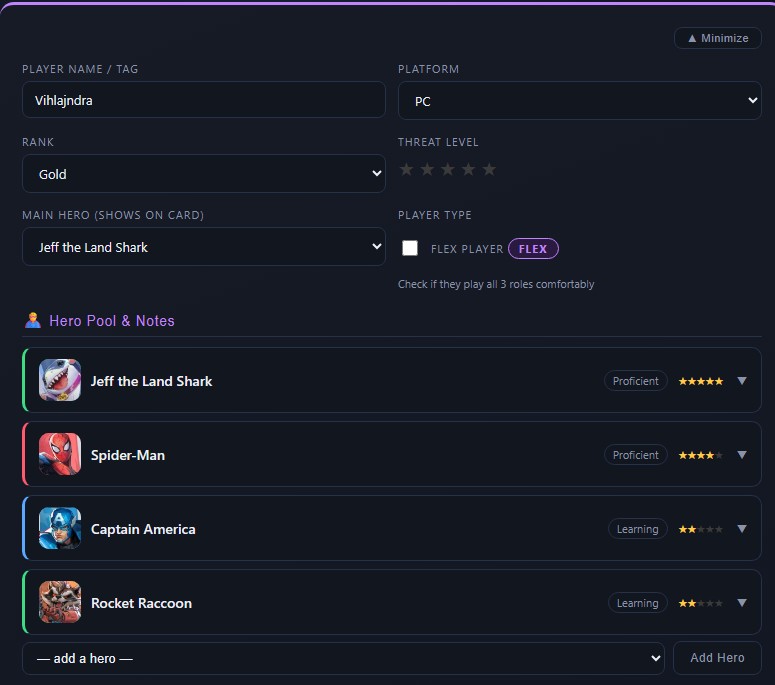
Hero Pool & Notes
Every hero you've added to this player's pool, sorted by mastery rating (highest first). Each row shows their skill label (Learning / Developing / Competent / Proficient / Expert) and a 1–5 star mastery rating — that star rating is what decides which of their heroes is "best" when the calculator auto-fills.
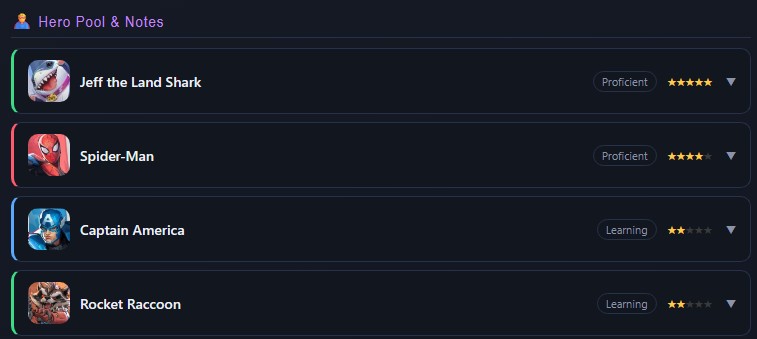
Click a hero to expand it: set their skill level and mastery stars, and jot down how they play that specific hero, coaching notes, and any extra feedback.
Playstyle & general notes
Below the hero pool: overall aggression and team-play tendencies, freeform strengths/weaknesses/counter notes, a running match log you can add entries to over time, and a general notes box for anything else worth remembering.
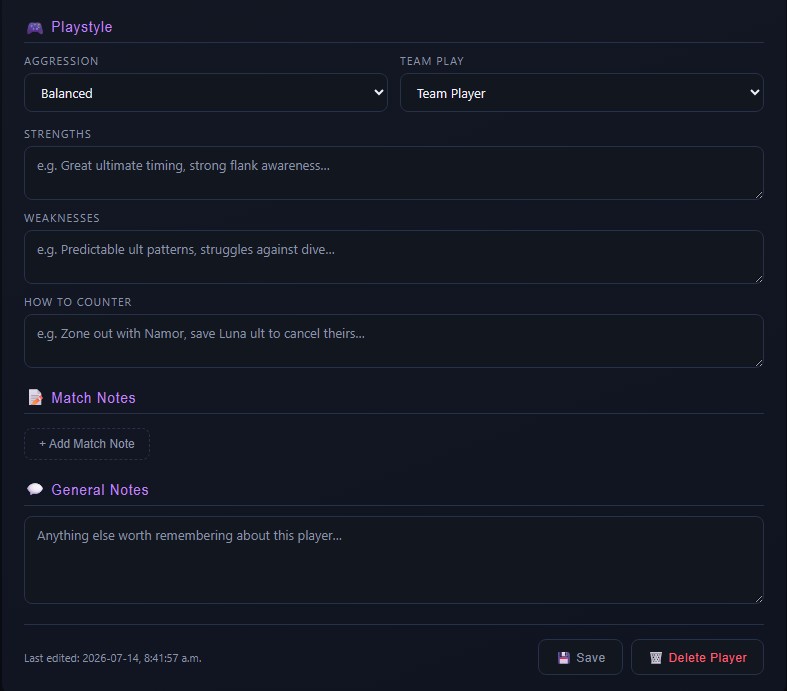
Everything on this page auto-saves as you type — the Save button is there for peace of mind, not because it's required.
FAQ
Their best-rated hero's role already hit its quota (2 of that role max) from someone ranked higher. From Scouts doesn't fall back to that player's other heroes — it's pure score rank per role slot, so a skipped player just sits out that round.
That button only pulls from players tagged Team A on the Scouting Notes page — if nobody has that tag yet, it asks whether to fall back to a plain random balanced fill instead. Go tag a few players Team A on their card (see Scouting Notes) and it'll pull from them next time.
No — Team Assignment is optional. Unassigned players just won't get pulled by either From Scouts button, but they're still fully available in the Load Team modal's Show: filter (under "All Players" or "Unassigned only").
It ran out of unused scouted players for that role and fell back to a random roster hero instead. Those slots are called out separately in the status line as "No player attached."
Use Set Images to point the tool at your hero portrait folder.
Click Restore real stats / Restore real counters in the relevant library panel — it resets that library back to the sourced defaults without touching anything else.